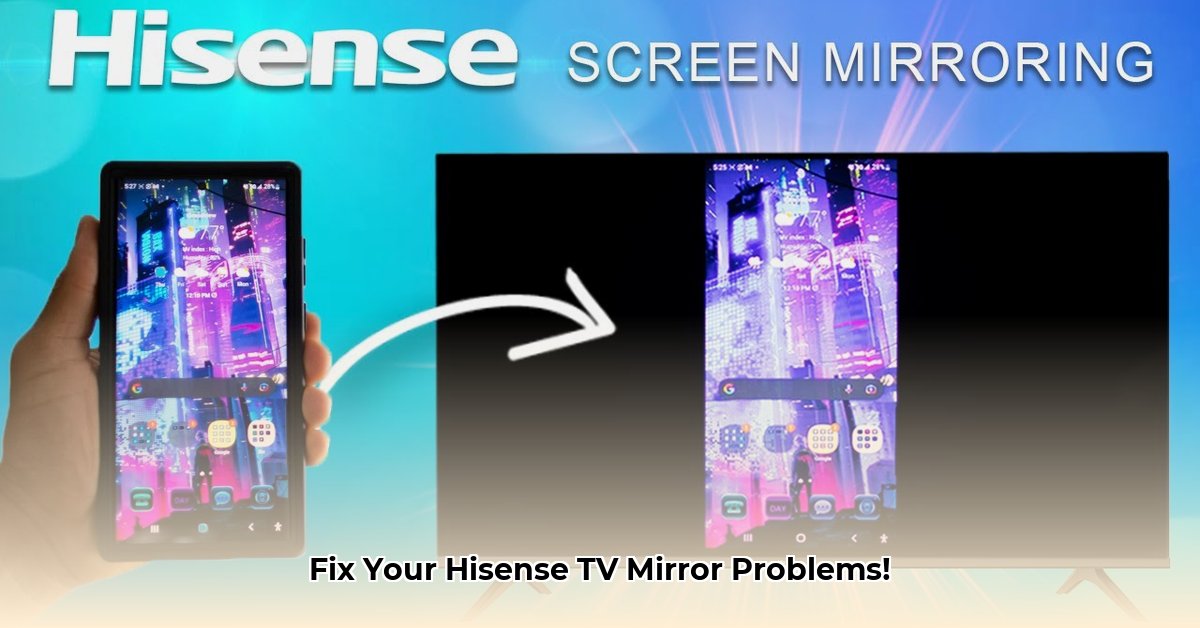
Want to effortlessly share your phone or computer screen on your Hisense TV? This guide provides clear, step-by-step instructions for various devices and troubleshooting tips to ensure a smooth mirroring experience.
Getting Started: Connecting Your Devices
Before mirroring, ensure your Hisense TV and device (phone, computer) are on the same Wi-Fi network. For the most reliable connection, consider using an Ethernet cable connected directly to your TV. The mirroring method depends on your device and TV's capabilities (AirPlay, Miracast, Chromecast). Some setups might require a third-party app like AnyView Cast.
Mirroring Your Screen: Different Methods
AirPlay for Apple Devices (iPhones, iPads, Macs)
- Confirm your TV and Apple device are on the same Wi-Fi network and the TV is powered on.
- Open Control Center on your Apple device (swipe down from the top).
- Tap "Screen Mirroring."
- Select your Hisense TV from the list. Enter any displayed passcode on your device.
Miracast for Android and Windows Devices
- In your Hisense TV's settings (usually under Network or Display), enable Miracast.
- On your Android or Windows device, find the "cast" or "screen share" option (often in quick settings).
- Select your Hisense TV from the available devices.
Chromecast for Google TV-Powered Hisense TVs
- Ensure your TV and casting device are on the same Wi-Fi network.
- In the app you want to cast, locate the cast button (Wi-Fi symbol with a rectangle).
- Select your Hisense TV.
Troubleshooting: Common Issues and Solutions
Did mirroring fail? Let's fix it!
Network Problems: A weak Wi-Fi signal is a frequent culprit. Try moving closer to your router or check for bandwidth hogs. Remember, a wired Ethernet connection is much more reliable.
Software Issues: Outdated software can cause mirroring problems. Check for updates on your TV and device (settings menu → software/system updates).
Compatibility: Not all devices and TVs are perfectly compatible. Ensure your Hisense TV model supports your chosen mirroring method (AirPlay, Miracast, Chromecast). Consult your TV's manual.
App-Specific Issues: For third-party apps (like AnyView Cast), make sure the app is updated and follow its instructions.
HDMI Cable Issues: If using an HDMI cable, ensure it's securely connected to both your device and Hisense TV. Try reseating the cable.
How to Fix Hisense TV Screen Mirroring Lag
Lagging screens are frustrating, but often solvable.
Key Takeaways:
- A strong Wi-Fi connection is critical for smooth mirroring.
- Outdated firmware can cause lag. Update your TV and device firmware.
- Restarting devices often resolves minor glitches.
- Check your HDMI cable connections.
- Consider alternative mirroring methods if Miracast lags.
- Third-party apps may offer improved performance.
- Network congestion can impact mirroring speed. Minimize other internet usage.
Step-by-Step Troubleshooting for Lag
- Check Basics: Are your devices on the same Wi-Fi network? Is the HDMI cable firmly connected? Does your phone have enough battery?
- Restart Everything: Power cycle your TV, device, and router (unplug for 30 seconds, then plug back in).
- Update Firmware: Check for and install updates on your TV and device.
- Optimize Your Network: Pause other downloads or streaming to reduce network congestion.
- Check for Interference: Physical obstacles or other devices can interfere with Wi-Fi. Move closer to your router or remove obstacles.
- Try a Different Method: If Miracast lags, try AirPlay or Chromecast.
- Use a Third-Party App: Explore screen mirroring apps for potentially better performance.
Advanced Troubleshooting Steps
If basic steps don't work:
- Factory Reset (Last Resort): Back up settings before performing a factory reset on your TV.
- Contact Hisense Support: Contact Hisense support for further assistance.
Preventing Future Lag
- Maintain a strong Wi-Fi signal.
- Keep your software updated.
- Regularly restart your devices.
⭐⭐⭐⭐☆ (4.8)
Download via Link 1
Download via Link 2
Last updated: Saturday, May 10, 2025